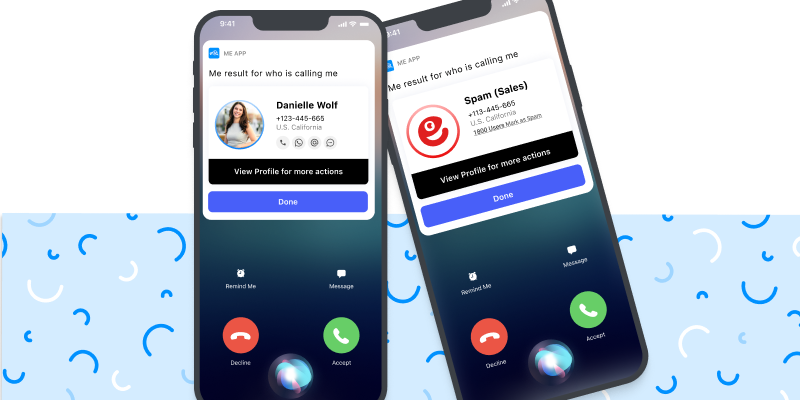
Identified calls is the screen in Me where every number Me has identified for you is kept in one list. It doesn't matter where it happened: a number that rang, a number you looked up in search or scanned with the camera, a number you typed into the dialer, or someone you never saved who wrote to you on WhatsApp. Each number shows up with its name, where Me identified it and when, so a number you meant to call back is always one tap away.
Me identified 10 numbers
- Maya Brooks+1 555-0147 CameraToday | 10:53
- Nora Whitaker+1 555-0174 DialerToday | 09:40
- Daniel Reyes+1 555-0118 SearchToday | 08:12
- Owen Castellano+1 555-0167 Recent CallsYesterday | 19:05
- Chloe Bennett+1 555-0129 VoIPYesterday | 14:22
- Possible spam+1 555-0193 SpamYesterday | 11:02
- Ethan Price+1 555-0152 SearchThursday | 17:30
- Grace Holloway+1 555-0136 Recent CallsWednesday | 12:48
- Lucas Meyer+1 555-0185 CameraTuesday | 09:15
- Sofia Turner+1 555-0141 DialerMonday | 20:06


 Identified
Me identified 10 numbers
- Maya Brooks+1 555-0147 CameraToday | 10:53
- Nora Whitaker+1 555-0174 DialerToday | 09:40
- Daniel Reyes+1 555-0118 SearchToday | 08:12
- Owen Castellano+1 555-0167 IdentifyYesterday | 19:05
- Chloe Bennett+1 555-0129 IdentifyYesterday | 14:22
- Possible spam+1 555-0193 SpamYesterday | 11:02
- Ethan Price+1 555-0152 SearchThursday | 17:30
- Grace Holloway+1 555-0136 IdentifyWednesday | 12:48
- Lucas Meyer+1 555-0185 CameraTuesday | 09:15
- Sofia Turner+1 555-0141 DialerMonday | 20:06


Where to find it
- Android: tap Phone in the bottom bar, then Identified at the top. Or open Menu and tap See my N Identified phone numbers.
- iPhone: tap the Identified tab in the bottom bar. The same See my N Identified phone numbers button is in Menu too.
What the Identified calls screen shows
Most caller ID ends when the call does. The name shows while the phone rings, and an hour later you are back to a row of digits in your call log. Identified calls is where a caller identifier app keeps its work: one list of every number Me put a name to, newest first.

Every row in the list has the same parts:
- The name Me found for the number, with a badge when the profile is verified.
- A picture when there is one, or the initials when there isn't.
- The number itself, underlined. Tap it and Me opens the dialer with the number already typed in.
- A source tag that says where Me identified it, such as Camera or Search. A spam number gets a red Spam tag.
- The time: Today | 14:32 for today, Yesterday for yesterday, the day of the week for the last seven days, and the date for anything older.
Tap anywhere else on the row to open the full profile. Above the rows, a total line reads Me identified N numbers. It counts what you are looking at, so when you pick a filter or search, the number changes with the list.
A few rules decide what goes on the list. Each number appears once, with the source and time of the most recent time Me identified it. On Android, numbers you have saved in your contacts stay off the list: you already know who they are.
How to open Identified calls
On Android
- Tap Phone in the bottom bar.
- At the top you'll see three options: Identified, Contacts and Favorites. Tap Identified. The screen's title is Identified calls.
The second way in is from Menu: once Me has identified at least one number for you, the menu shows a button that reads See my N Identified phone numbers, with your own count. It takes you to the same screen.


On iPhone
On iPhone the screen has its own tab: Identified, in the bottom bar. Menu has the same See my N Identified phone numbers button, and it opens the same tab.

The filters: where each number came from
Above the list is a row of filter chips, one for each place Me identifies numbers. You only see chips for sources that are actually in your list, so a new user may see two and a heavy user may see all of them.


- On Android, tap a chip to show only that source. Tap the same chip again to go back to the full list. There is no "All" chip.
- On iPhone, the first chip is All. Search and the chips appear once you have 5 or more identified numbers.
Here is what each chip means, and how a number ends up under it.
Recent Calls (Android)
A number that called you and was identified while it rang. Say a number you never saved calls, Me shows the name, and you decide not to answer. That number is now under Recent Calls, ready when you want to call back. WhatsApp and Viber calls from unsaved numbers land here too, if you have turned on Identify 3rd party calls.
Chat (Android)
Someone you haven't saved sends you a WhatsApp message. With Identify 3rd party messages turned on, Me identifies the sender and the number appears under Chat. Both options are in Menu › Settings › Caller ID Settings › Allow Me to Identify in other apps.
Search
You typed a number into Me's search to see whose it is. That lookup is saved here under Search, so you don't have to search for it twice. More on lookups in phone number search.
Camera
You pointed the camera from Me's search at a number printed on a flyer, a business card or the side of a van, and Me read it and identified it. It goes under Camera.
Dialer
You typed a number into Me's dialer and Me showed you the name before you called. That number is saved under Dialer.
Spam
Any number that turned out to be spam, wherever you met it, is tagged Spam in red. Tap the chip to see only spam numbers.
Web
If you use Me Web on your computer, you can bring the numbers you searched there into the app: Settings › Me Web Access › Synchronize Searches with Me Web. They appear under Web. Me asks you to confirm first, because the sync can't be undone. Numbers that are in your contacts are left out.
Identify (iPhone)
On iPhone, a number you identify from outside the app gets this tag: a number you sent to Me with Identify Phone from the share menu, or one you checked with the Who Is Calling Me shortcut.
Searching the list
When the list gets long, the search field at the top is the fastest way back to a number. On Android it says Search For a Name, and it finds numbers too: type a name or a few digits. On iPhone it says Search For a Name or a Phone. The part that matches is shown in bold.

Search works together with the filters. Pick Camera and type "plumber", and you get only the plumbers you scanned. If nothing in the list matches, one tap takes what you typed to Me's full search: the button is Search on Me on Android and Advanced search on iPhone.
Swipe actions and the More menu
Every row can be swiped sideways. One side holds a green Call action that calls the number. The other side holds two buttons:


- More opens a menu for the number: Suggest new name if the name looks wrong, Report as spam (with how many people already reported it), and Block, or Unblock if it is already blocked.
- Delete record removes the number from your list. Me asks before deleting, and the record is removed for good.
A spam report does more than tidy your own list: it updates the warning other Me users see for that number. Reports like yours are part of what makes finding out who called work.
Android and iPhone: what's different
| Android | iPhone | |
|---|---|---|
| Where it is | Phone › Identified, or Menu | The Identified tab, or Menu |
| Filters | Recent Calls, Chat, Search, Camera, Dialer, Spam, Web | All, Search, Spam, Dialer, Camera, Identify, Web |
| "All" chip | No: tap the active chip again to clear it | Yes, first in the row |
| Search field | Search For a Name (finds numbers too) | Search For a Name or a Phone |
| Swipe actions | Call, More, Delete record | Call, More, Delete record |
The difference in filters follows how each phone handles calls. On Android, Me identifies the call itself, on screen while it rings, so calls and WhatsApp activity feed the list. On iPhone, the name of an unsaved caller appears on the iPhone's own call screen; how to turn that on is in caller ID for iPhone. For the Android setup, see caller ID for Android.
Where the list is kept
The Identified calls list is your own history. It is kept in the Me app on your phone and built from what you did: the calls you got, the numbers you looked up, the messages you received. Numbers from Me Web only join it when you choose to sync them. Anything you don't want on the list, you can delete with Delete record. The list is not stored in your Me account, which is why a backup matters.
Backup and restore: so the list isn't lost
Because the list is kept on your phone and not in your Me account, deleting Me without a backup deletes the list too. A backup copies it, with the rest of your Me data, to your own cloud: Google Drive on Android, iCloud on iPhone.

Back up on Android
- Open Menu › Settings › Back-up and Restore.
- Tap Sign-in with Google Account and pick the account to back up to. From then on, Me backs up automatically, about once a week.
- To back up right now, check that Identified phone numbers is selected under Select features to backup, and tap Backup Now.
Back up on iPhone
- Me backs up to iCloud, so iCloud has to be available on the iPhone.
- Open Menu › Settings › Back-up and Restore.
- Under Select features to backup, keep Searches selected: on iPhone, that is the identified list. Tap Backup Now.
On iPhone, Me also backs up automatically, about once a week, whenever iCloud is available.
Restore after reinstalling, or on a new phone
- Install Me and open it. When Me finds backups, it asks: We found out you have N backups. Do you want to see them and restore? You can also go to Menu › Settings › Back-up and Restore yourself. On Android, sign in with the same Google account you backed up to.
- Tap View Backup list to Restore and choose a backup.
- Under Select features to Restore, choose Identified phone numbers on Android or Searches on iPhone, and tap Restore Now.
Backing up is free. Restoring a backup is part of Me Pro.
A backup holds more than this list. You choose what goes in: your contacts, your call history, favorites, notes, Me's settings and the identified numbers. Me keeps your 5 most recent backups and clears older ones by itself, and a backup you lock is kept. The full guide is in backup and restore in your cloud.
Tip: switching phones or reinstalling Me? Open Back-up and Restore and tap Backup Now first, so the backup has everything up to today.
Frequently asked questions
What is an identified call?
A call from a number you haven't saved, where Me showed you who it is. In Me, every identified call, and every number you identified in other ways, is listed on the Identified calls screen. For how identification works in general, read what caller ID is and how it works.
Why isn't a number I know on the list?
On Android, numbers saved in your contacts are not listed, because you already know who they are.
Why does a number show only one source?
Each number appears once. If you searched a number last week and it called you today, the row shows the latest: Recent Calls and today's time.
Why did the count change when I picked a filter?
The line Me identified N numbers counts the list you are looking at. Pick a filter or type a search and it counts only those results.
Does Identified calls include WhatsApp?
Yes, on Android. WhatsApp and Viber calls from unsaved numbers appear under Recent Calls, and WhatsApp messages from unsaved numbers under Chat, once you allow Me to identify in other apps in Caller ID Settings.
I'm on iPhone and I don't see filters or search. Why?
They appear once your list has 5 or more numbers. Until then, the list is short enough to read at a glance.
What happens to my identified calls if I delete the app?
They are deleted with it, because the list is kept on your phone. Back up first in Menu › Settings › Back-up and Restore, and after you reinstall you can restore the list from that backup. Restoring is part of Me Pro.
Can I delete a number from the list?
Yes. Swipe the row and tap Delete record, then confirm. The number is removed from the list for good.
How is this different from the call log?
The call log lists your calls. Identified calls lists numbers Me identified for you, including ones that never called: numbers you searched, scanned or typed into the dialer.