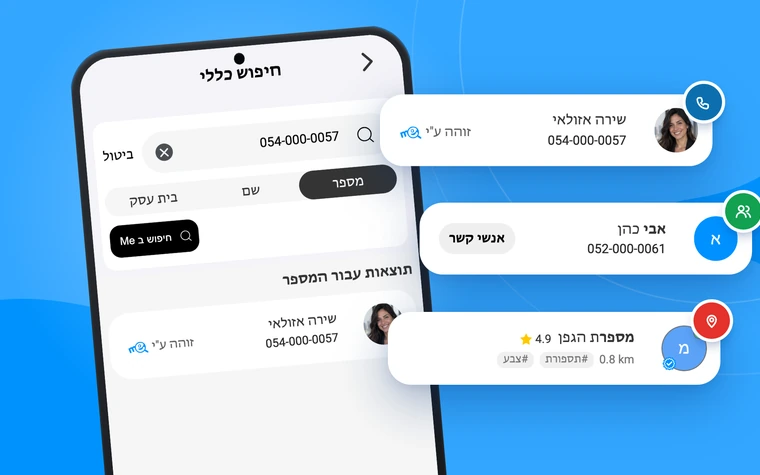
Me - Introducing New Feature: REAL TIME CALLER ID for your iPhone
Plus, not like other  .. decided to offer the new add-on to everyone for FREE.
*The new feature allows you to identify any phone number without depending, as before, on the phone's database (call kit extension)*
Meaning, you can identify any number before answering the call.
Me version 7.1.4 and up!
platform: iOS
Don’t have Me yet? download now


So, what can you do with this new feature?
You can know who is calling you even before you answer the call in real time by:
Double tap - tap twice on the back of the iPhone to display the Caller ID
Ask Siri - you can ask during a call Hey Siri "Who's calling ME" And ME app will show you the name of the caller on the screen before you answer the call
It is highly recommended that in order for the new caller ID to work for you all the time and without problems, the new service must be configured once as required:
First, please verify you have the "Shortcuts" app by apple installed on your device.
Step 1 - Hey Siri "Who's Calling Me?"..
Go to Me -> Menu -> Enable real-time caller id -> Install the Siri shortcut

Step 2 - Activated Back Tap on iPhone (Double Tap)
**Support from iPhone 8 and above**
Go to iPhone settings -> Accessibility -> Touch -> Back Tap -> Choose "Who's Calling Me". (from the list).

A double tap on the back of the iPhone to quickly activate the caller id on an incoming call
(or wherever you have a phone number that you want to quickly recognize)
Step 3 - Permissions
- final step -
Create a new note, and write number on the note now Double Tap on your back of your iPhone or ask siri "Who's Calling Me?"..
The iPhone will ask you for permission you should select "Allow always".
From the next call and on you can say (Hi Siri, "Who's Calling Me") or Double Back Tap, Me Caller ID new screen will appear before you answer the call.
Tips!
Every result of numbers that has been identified via the new feature, will be saved for quick access in the "Identified numbers" Tab, inside the Me App.
In our new caller id screen by clicking on "View Profile", you will be able to perform additional quick actions such as: sending WhatsApp without saving a contact, viewing mutual contacts, etc.
For your information:
- If the double tap on the back of the iPhone does not work for you after you have set up step b, turn off and restart the iPhone and try again.
- When getting a call in popup please touch on the popup to enter full screen mode - only then activate the caller id function (via double-back-tap, or Siri)
- If it's not working in the first or second time please make sure you've enabled all the requests permissions and select "always allow"
- You can use Hey Siri "Who's calling Me" ? Or by double-back-tap anywhere on the iPhone where there is a visible phone number on the screen, make sure only a phone number is visible without additional numbers that's not related (such as call duration etc...)
- Siri does not like background noises, so if you are in a noisy place and Siri does not understand you, use a double tap on the back of the device instead of Siri.
- If you double tapped on the back, wait patiently if touch repeatedly it can freeze the extension.
Well done you've made it this far, don't miss real-time caller ID and spam SMS protection on your iPhone
We are constantly working on improving our Product since 2014 (Me™, MeApp™) and providing our users with new and useful features.
This new feature is just one of many updates that we have in store, so be sure to stay tuned for more exciting announcements in the future.
Thank you for using Me app and we hope you enjoy this new feature!